
If you are receiving spam or unwanted emails in Microsoft Outlook, you will have the option to block senders by email address (a specific person) or domain (the whole company). This means they still can send you emails, but their messages will be immediately moved to the ‘Junk Email’ folder.
This guide will walk you through the steps to block unwanted messages on Outlook for Windows. You'll also discover when businesses should employ sophisticated email filtering to protect inboxes from persistent spam when blocking is insufficient.
Table of contents
- How to block emails on Outlook (New)
- How to block emails on Outlook (Classic)
- When you should use email filtering instead of manual blocking
How to block emails on Outlook (new)
Quick block from email
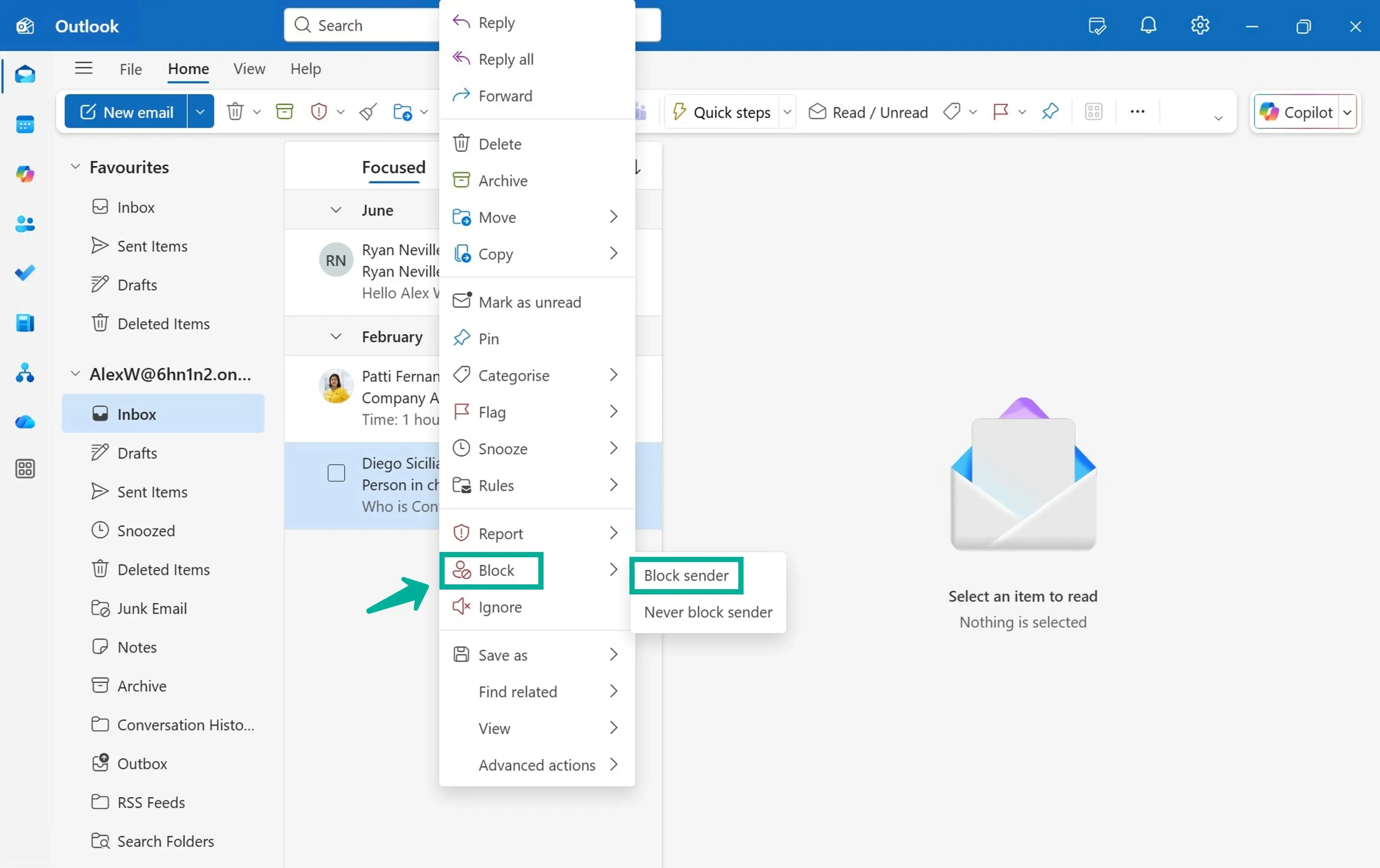
- In your Outlook inbox, right-click on the email from the sender you want to block.
- Choose ‘Block sender’.
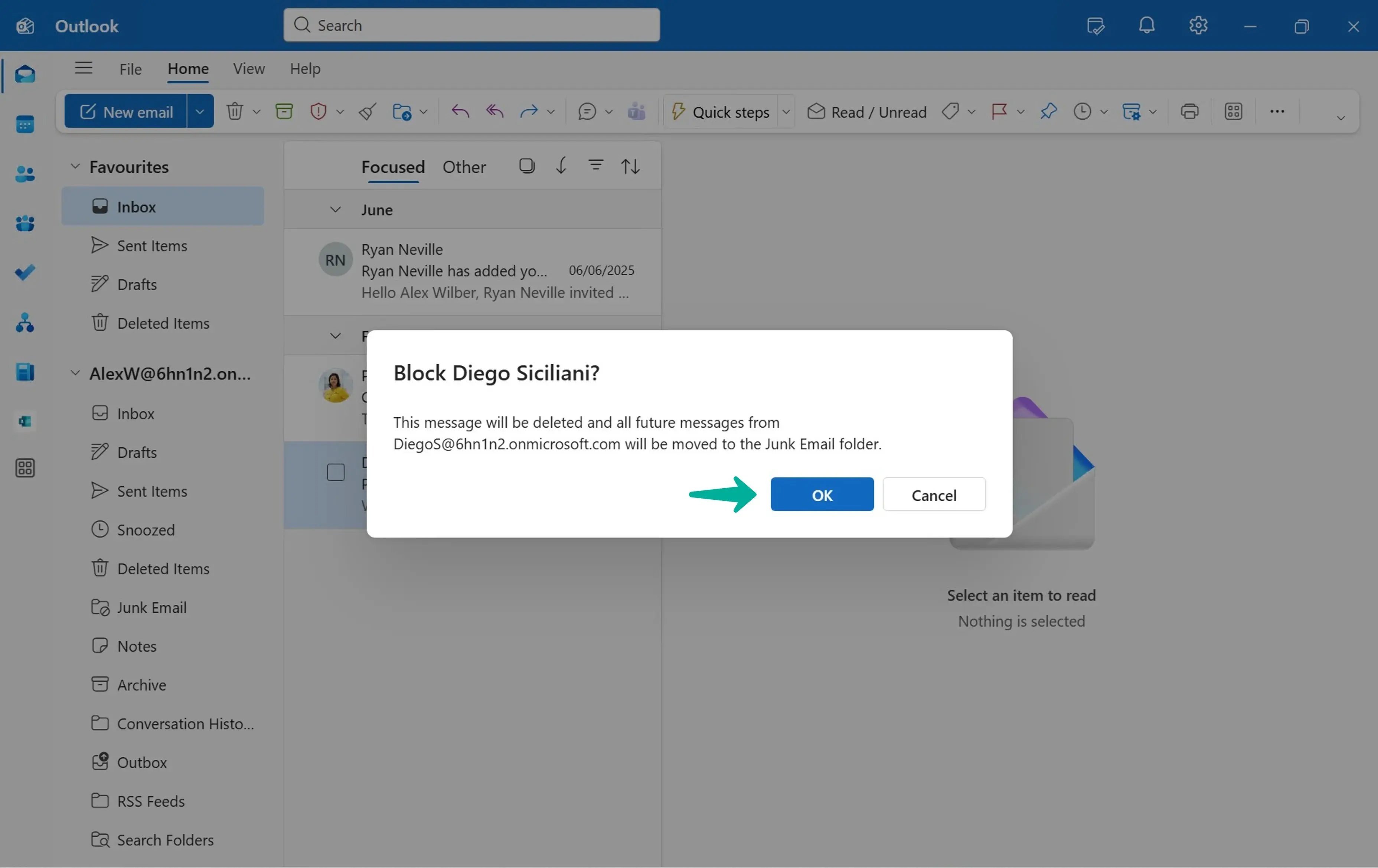
- A pop-up window will appear; click ‘OK’ to confirm.
Block from Settings
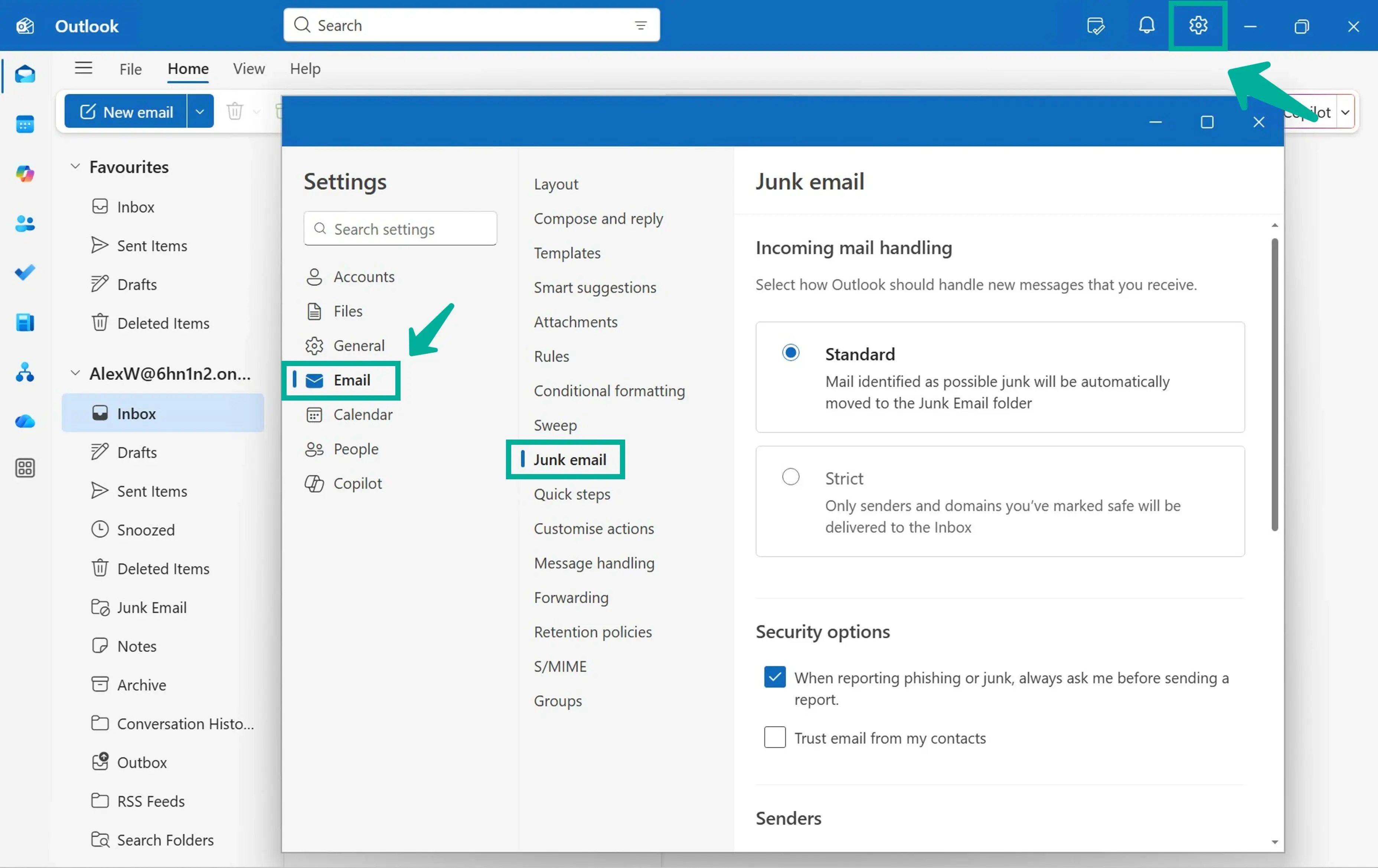
- Click on the cogwheel for ‘Settings’ in the top right corner of your Outlook.
- On the Settings window, go to ‘Email’, then click on ‘Junk Email’.
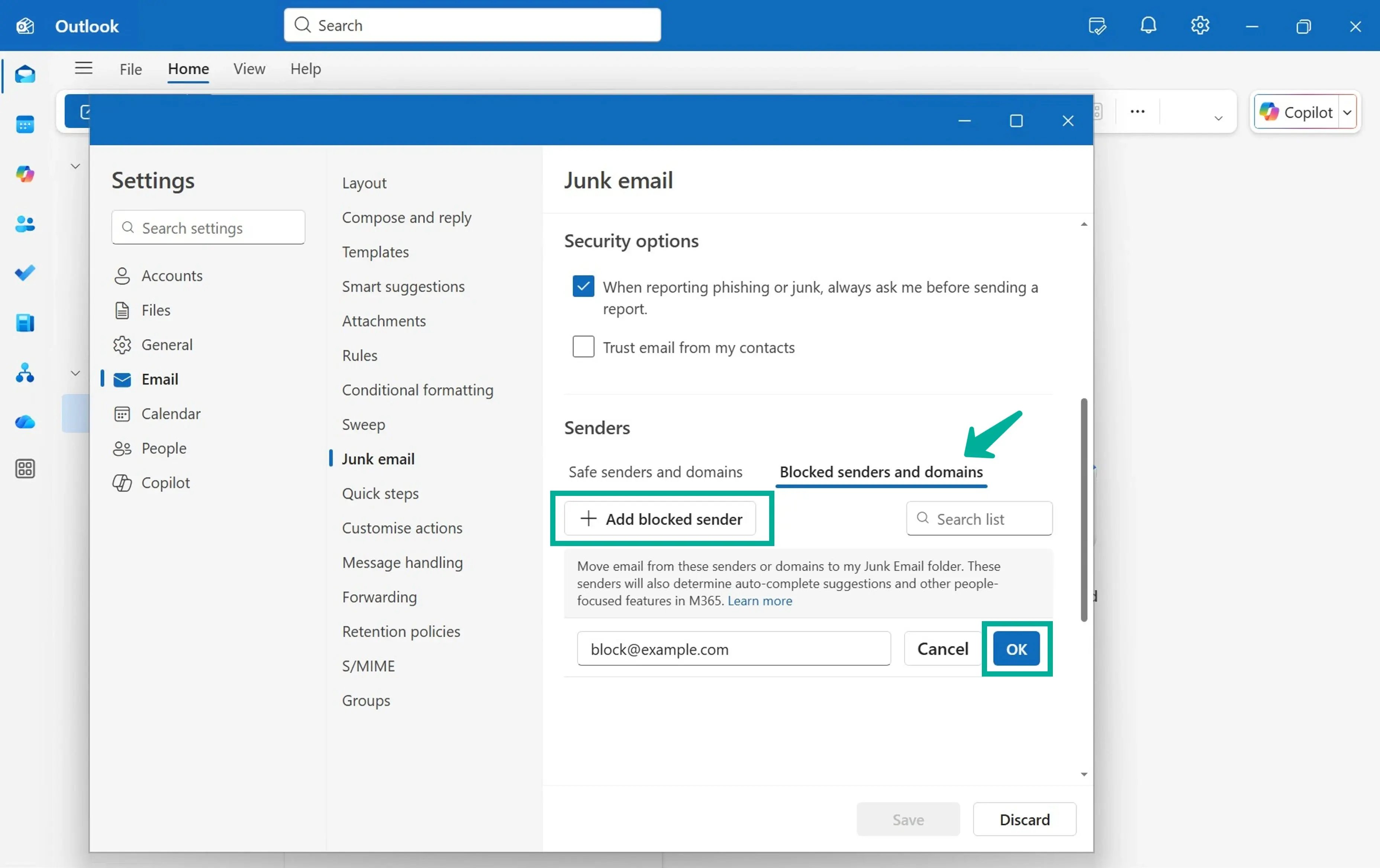
- Scroll down to see the ‘Senders’ section, then select ‘Blocked senders and domains’.
- Click on the ‘Add blocked sender’ button. A text field will appear for you to enter the email address or domain you would like to block. Click ‘OK’ and 'Save' to complete the action.
- Future messages sent from this blocked list will be stored in the ‘Junk Email’ folder.
- To remove the senders from the blocked list, click on the ‘Delete’ button next to their email addresses or domains.
How to block emails on Outlook (classic)
- On Outlook, right-click on the message from the sender you want to block.
- Go to ‘Junk’, then click ‘Block sender’, then click ‘OK’.
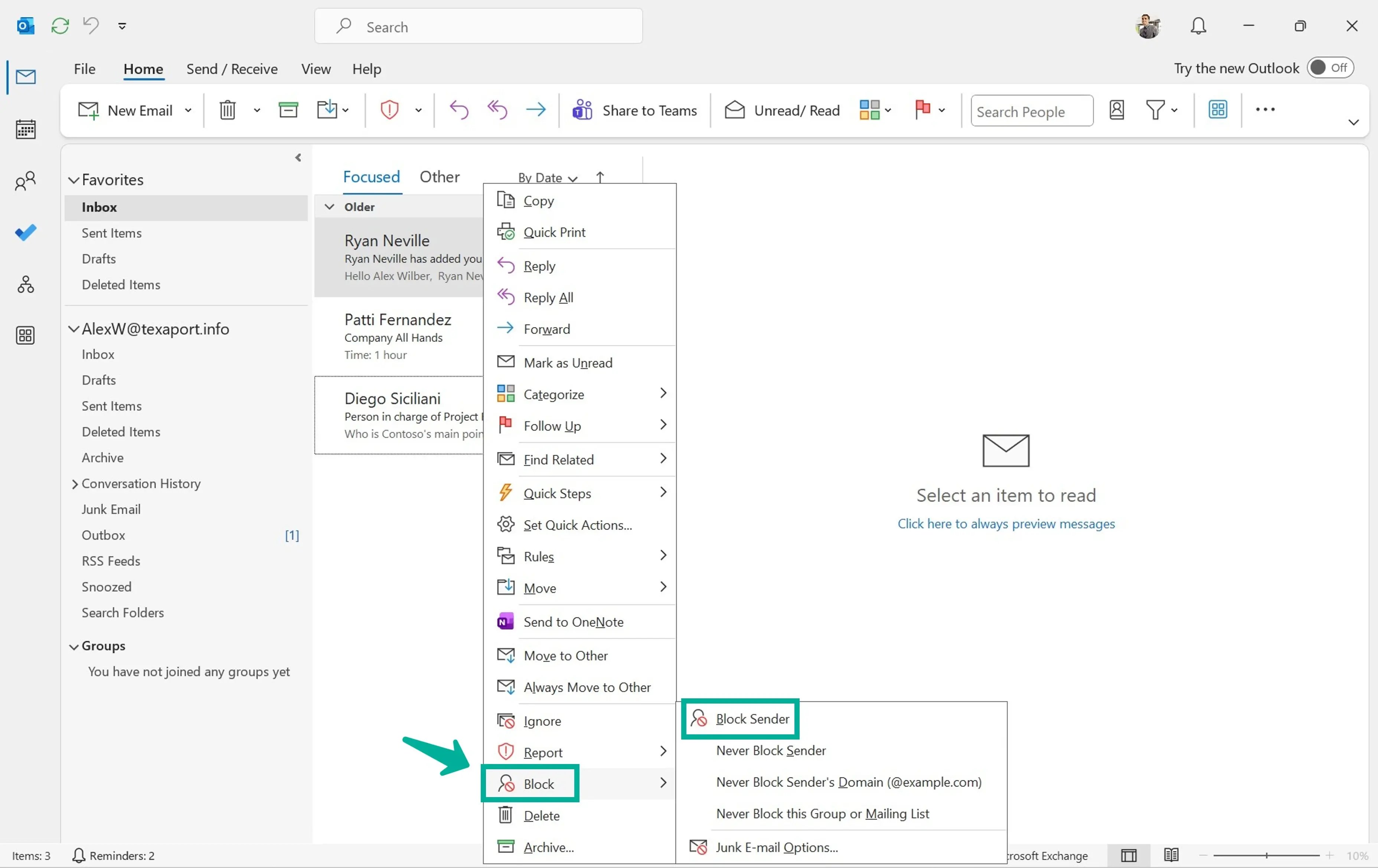
- All future emails from this email will be moved to ‘Junk Email’.
When you should use email filtering instead of manual blocking
For business users, Outlook’s built-in blocking can help with simple spam, but it’s not designed to handle:
- Frequent address changes used by spam campaigns
- Spoofed domains
- High volumes of junk messages
- Multiple users requiring consistent protection
Businesses are advised to utilise advanced email filtering when facing these issues. Email filtering systems routinely stop incoming messages from reaching your Outlook inbox by using intelligent algorithms that check them for spam, viruses, and phishing attempts.
If unwanted emails are affecting your productivity or overwhelming your inbox, upgrading from manual Outlook blocking to a dedicated email filtering solution is the most effective way to regain control.
At Texaport, we help organisations strengthen their defences, reduce spam dramatically, and maintain a cleaner, more secure email environment. Get in touch today to learn how our managed IT services and Microsoft 365 support can boost productivity and protect your business.